Frequently Asked Questions
Is general Banner access available?
Access to Banner is requested and provisioned through specific modules such as Finance, Financial Aid, HR/Payroll or Student. For more information and who to contact for questions, access Banner Help.
Who should I contact for questions related to my password?
For questions related to passwords, contact the AITS Service Desk.
An employee is leaving my department. What action do I need to take?
A request to terminate access should be submitted via the Security Application prior to the transferring employee’s last day. Fill in the date that the employee should no longer have access in the “Active Date” field, and click on the box next to the text ‘TERMINATED or TRANSFER EMPLOYEES.’ These fields can be found on the first page of the request form.
An employee is transferring into my department. How can I determine what access has been removed by the previous department?
This can be accomplished by selecting the "Search Account Owner(s) Access" link from the Welcome page in the Security Application . Type in the UIN or Enterprise ID and verify that the user does not have any access setup under the previous department. If access is still setup, send a note to AITS System Access Management.
As a USC, do I need to authorize Security Application requests?
Typical USCs do not authorize requests. Authorizer groups are in place within the Security Application.
When I retrieve an NetID in the Security Application, the only information that is correct is the First and Last Name. How can I update the record to reflect the correct information?
All fields except First and Last Name may be edited with new information. First and Last Name cannot be changed. (Note: If you need to update the First and Last Name for the Account Owner, please send your request to AITS System Access Management.)
How do I know if my Security Application request was submitted successfully?
There are 3 methods to determine if your request was submitted successfully.
- When a request is successful, a pop-up window appears stating "Requests Submitted…Thank you for using…"
- Select the "Search Requests" link from the Security Application Welcome page, and input the UIN or Enterprise ID of the person you’ve requested access. If the request is successful, it will be displayed.
- You should get an email.
If someone changes his or her NetID, is their Enterprise ID automatically changed?
When someone changes his or her NetID, the campus computing office informs AITS System Access Management. AITS System Access Management then begins the Enterprise ID change process. For users with no Banner access, AITS System Access Management will change the Enterprise ID immediately. For users that have Banner access, AITS System Access Management will work with the user to find a suitable time to change their Enterprise ID and accesses. The Enterprise ID and access change may result in a user being without access for a time.
What profiles can’t I request in the Security Application? How do I request access to these profiles?
Restricted Finance Profiles. The following access can be requested by sending an e-mail to AITS System Access Management.
How can I determine what Banner access someone has?
Currently, there are 2 sources for Banner access:
- The Browser option in the Security Application
Click on 'Search Account Owner(s) Access' in the Security Application to display a user’s modules, increments, and profiles.
- R & R profiles
For Records and Registration access, send an e-mail to AITS System Access Management. In the future, R & R access will be available for viewing and requesting in the Security Application.
How do I request Data Warehouse Access?
- Click on the 'DS USC Application' link on the right side of this page
- Select the EDDIE/Data Warehouse from the drop down selections and follow the instructions on the page.
Are Social Security Numbers still used as a means of identification at the University?
Social Security Numbers are highly confidential and legally protected data. There are situations where the University of Illinois may request a Social Security number as a means to uniquely identify records. For a full description of the University of Illinois' Social Security number policy, please visit SSN Policy.
I can not find the Security Compliance Form.
It is located at the following link: Compliance Form. To see who has filled out the on-line Compliance Form, you can check the Audit Log.
What is the procedure to assign a Unit Security Contact (USC)?
Each U of I department has a primary USC who is appointed by the Dean, a Director, or Department Head (DDDH). The DDDH appoints the primary USC by sending an email to AITS System Access Management. (The primary USC can be a DDDH if desired.) In addition, the DDDH or appointed primary USC should appoint a backup USC. There can be only one primary USC per department code, but the department may add as many backup USCs as they feel necessary. If possible, there should be at least one backup USC to cover responsibilities when the primary USC is out of the office and to request access for the primary USC if needed. When sending the email request, please indicate whether the person is to be a primary or backup USC, include the name, email address, NetID, all coll/depts they are to be the USC for such as KL 306, KL 348, KL 384 and the starting date.
What is the procedure to change/remove a USC?
AITS System Access Management will only accept a note from the DDDH to change/remove the primary USC. The primary USC can send AITS System Access Management an email to change/remove the backup USC(s). Please indicate all coll/depts from which they are to be removed and when the removal is to be done. If this person has left the University or changed departments, a current USC should request all access(es) to be deleted (Eg. Banner, EDDIE, LAN, etc.).
What access does a user need in order to submit expense reports?
Chrome River is the University Travel and Expense Management application. In order to submit an expense report, a user would need the Required Chrome River Profile which is found under the Chrome River Access increment in the AITS Security Application. For additional information and who to contact for help, access Chrome River Help.
Why can I not add a second Unit Contact or Unit Head?
Units can only have one user in these roles at a time. In order to replace someone in that position, you will need to remove the current user in that role and then add the new user.
I’m getting an error trying to add a user as a Unit Rep?
A recent change was implemented in the AITS Security Application to prevent the assignment of incompatible profiles across iBuy, Banner, and FABweb. Please see the following information regarding prohibited role combinations.
Where and how do I request access for FABweb/Biennial profiles in the AITS Security Application?
To add or remove access to FABweb profiles log into the AITS Security Application and click on Initiate Request.
Removing access to FABweb profiles
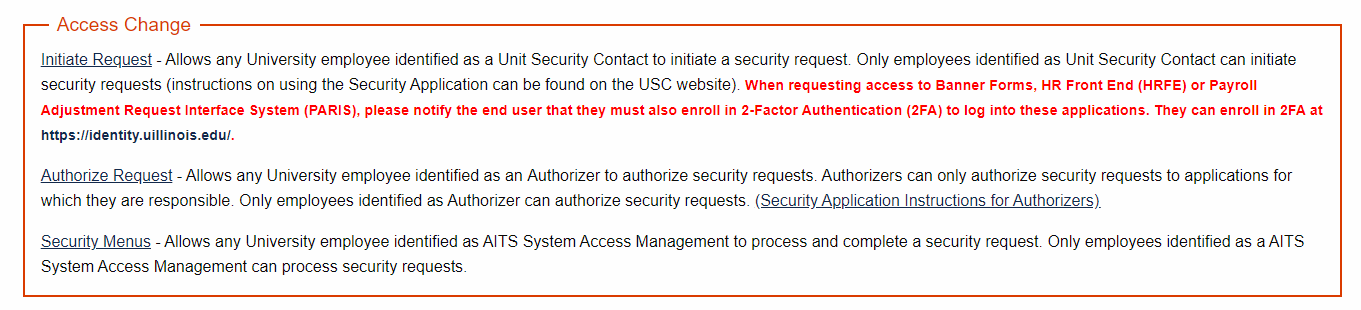
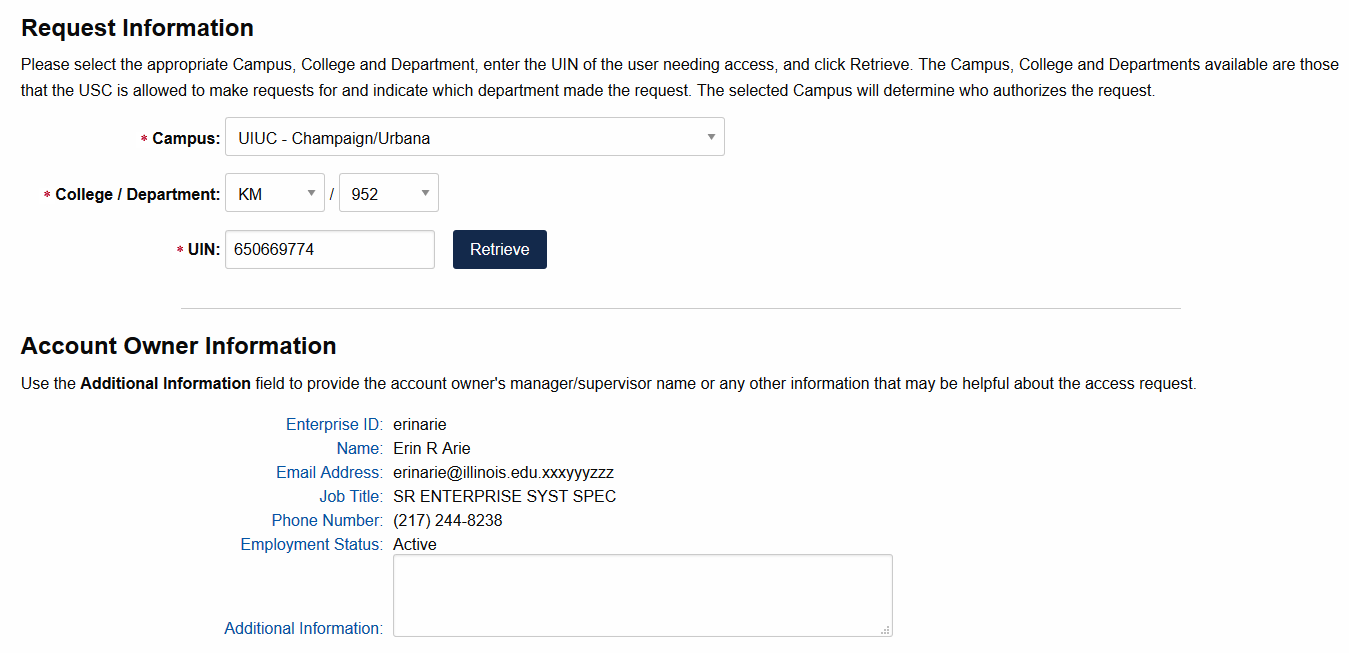
Enter in the Request Information and click on Retrieve. Verify the Account Owner Information and click on Continue. A Verification box will appear and click on Confirm.
You will now see the Security Main Menu, click on Banner Finance.
Under Increments you will see the new increment FABWEB/Biennial Profiles. Click on the FABWEB/Biennial Profiles increment and you will see the associated profiles.
.png)
To add a FABweb profile: under Action choose Add and then click on the Org Code Access under Settings. Select the appropriate org code access from the drop down menus and click Save (repeat if additional departments are needed).
To delete a FABweb profile: under Action choose Delete and then Save.
To delete a FABweb setting: under Action choose Update and then click on the Org Code Access under Settings. If the user has more than one setting listed you can delete a setting. If there is only one setting and you are not adding additional settings you will need to delete the entire profile. You should be able to remove access from that screen just like any other profile. It will be then processed by AITS System Access Management and FABWEB will be updated.
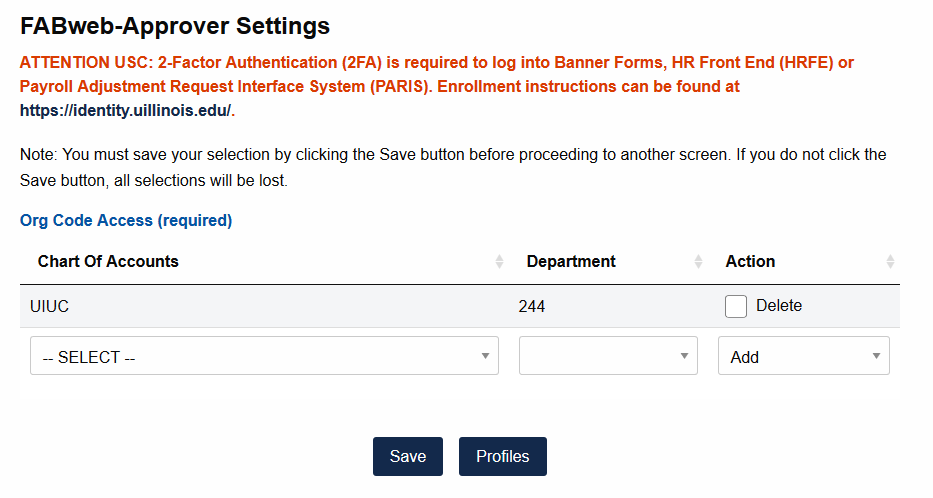
When done making your selections click on Profiles at the bottom of the page. If more access is needed select additional profiles and settings. When your request is complete click on View/Submit Request at the bottom of the page.
Review your request and if correct click on Submit.
It will be then processed by AITS System Access Management and FABWEB will be updated.
Proxies
Two things must be true for Proxies to work in Banner.
- Proxies in Banner must have the same role as the person they’ll be backing up. For example, if Dan wants Susie to be his backup to enter time, Susie must have the Time Entry Proxy profile and have the same organizational access as Dan. This profile and HR-Pay organizational access can be requested through the Security Application.
- In addition, Dan must name Susie as his proxy using the NTRPROX form. Instructions to do this follow below.
Proxies for Time Entry/Approval
- Go to NTRPROX
- Page down into form
- Click on the 'Other Modules' tab
- Type in the enterprise id(s) of the proxy
- Page down into 'Proxy Modules' TIME should default in.
- Save
EPAF Proxies – With the advent of the HR Front End, EPAF proxies are no longer necessary.
BDMS-Xtender Requests
Access to the online Xtender Security forms listed below is RESTRICTED to only those Unit Security Contacts (USCs) of these departments. If there are questions, please send an email to AITS System Access Management.
University Administration and Special Access
For questions regarding the HR document types in each HR Xtender security profile, consult this spreadsheet.
Multi Dept Requests
Presently, only the Finance Approver profile requires additional settings for multiple departments. This can be accomplished by selecting multiple departments with the drop down boxes. If there are no additional settings required, do not submit a request for each individual department.
To submit UI-Integrate/Banner Access Request for a user that needs access to multiple departments, or to remove access for multiple departments, please complete the following steps:
- Log on to the Security Application.
- Click on ‘Initiate Request’.
- Fill out all the information on the UI-Integrate Access Request Form and click ‘Continue’.
- Click on ‘Finance’ from the Security Main Menu screen.
- Click on ‘Finance General User Profiles’ on the Finance Security screen.
- Click on the ‘Requisition Approvals’ link associated with the Finance Approver Profile.
- Select a Chart of Accounts by using the drop down menu.
- Select the department using the drop down menu.
- Select the dollar threshold using the drop down menu.
- Select the action, Add/Delete/Update. Select ‘Add’ to add a department for users access or ‘Delete’ to remove a department from users access. ‘Update’ will let you update the dollar threshold for the user.
- Click on the ‘Save’ button.
- For each department, select Add/Delete/Update for your user's access by completing steps a-e above. Remember to Save after each Action (Add/Delete/Update), otherwise your selections will be lost.
- You must Click on the Submit button to start the request process when you are finished.
Changes to the Employee Class Access Increment in the Security Application
What is happening?
Currently in the Security Application under the Employee Class Access Increment there are two profiles: Master Employee Class Access and Restricted Employee Class Access.
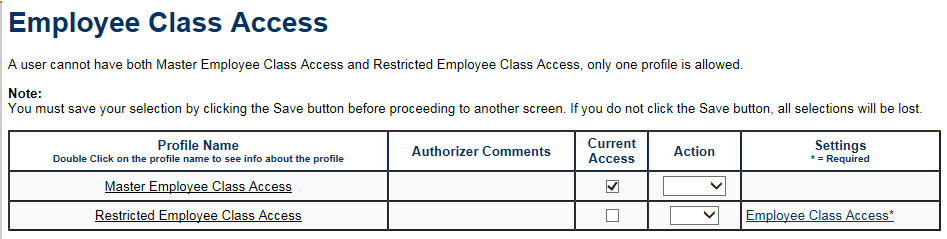
On Thursday, March 2, 2017 an update will be made in the Security Application and there will only be one profile: Employee Class Access. If the user has no Employee Class Access the only option under Action is to Add and then you must click on the Master Access Restricted Access link under Settings.
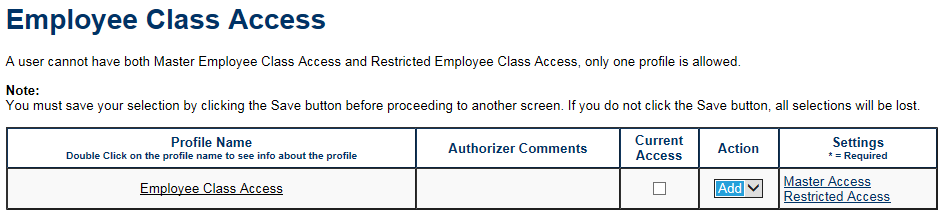
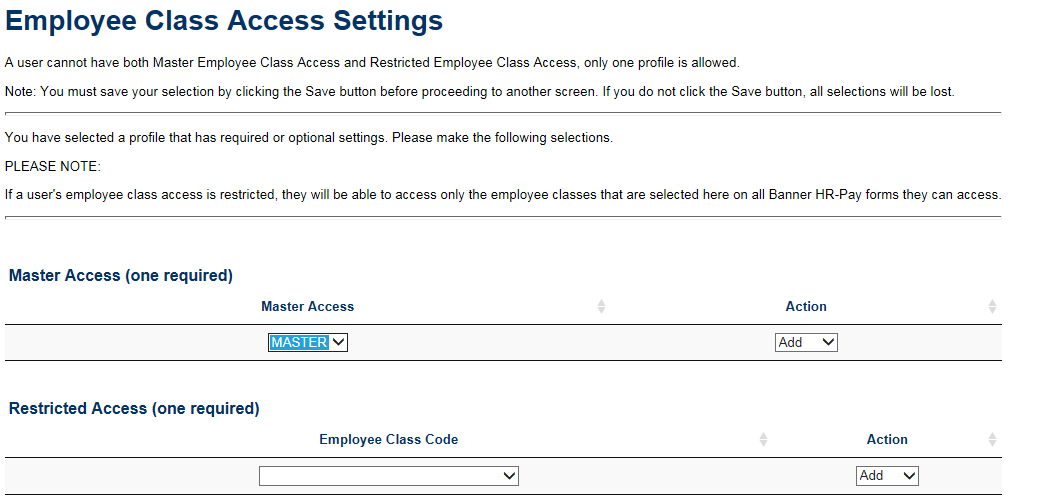
Here you will choose either the Master Access setting or the Restricted Access setting(s) and complete your request. In the screenshot below Master Access was chosen.
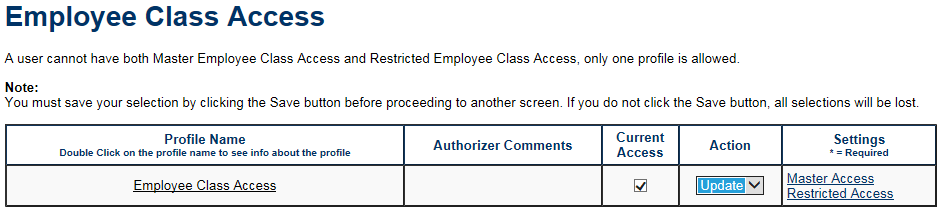
If the user already has Employee Class Access you will choose either Delete or Update under Action. If you want to update the users Employee Class Access from Master Access to Restricted Access or vice versa you will choose the Update Action.
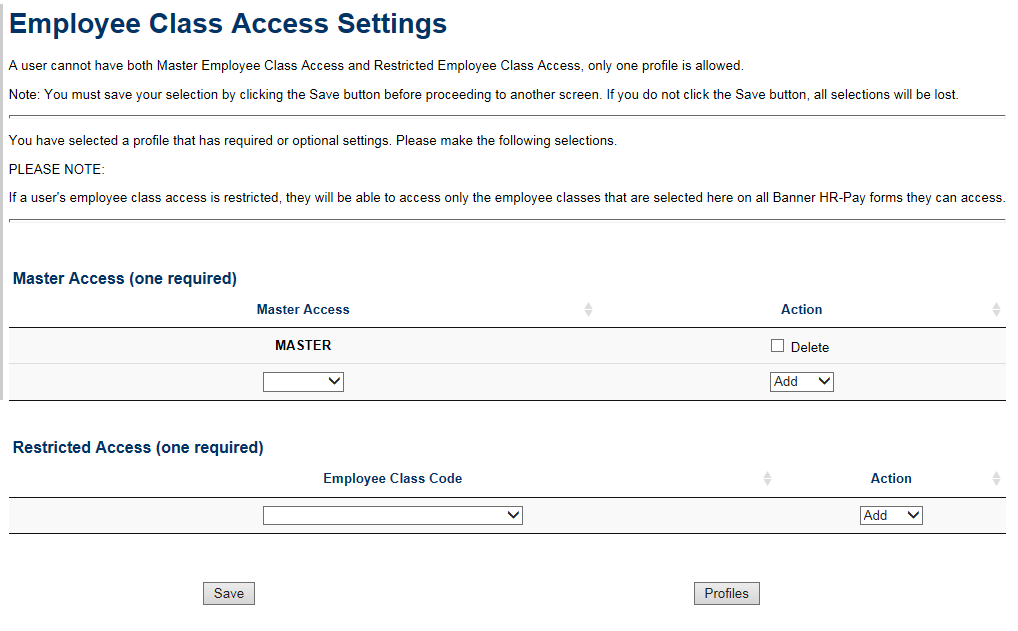
Once you click on the link under Settings you can see that the user already has Master Access and now you are able to change the access to Restricted Access. You will need to check the Delete box under Action and then choose all Employee Class Codes that apply.
If you want to remove all Employee Class and the Account Owner does not have UI HR-Pay access that must be deleted first then you can choose Delete under Action and proceed with the request. If the user does have UI HR-Pay access then it must be removed first in a separate request and then the Employee Class Access can be removed. Both need to be submitted separately.
If you have any questions regarding these changes or other Security Application functionality please email AITS System Access Management.