Authorization Training
Security Application User Guide for Authorizers
This document provides instructions for using the Security Application. The following topics are included:
- Introduction
- Logging into the Security Application
- Select Authorizer Screen
- View Requests Pending Authorization
- Claim Authorizer Responsibility
- View Request Details
- Authorize Request
- Submit Authorization
- Authorization Completed Email
- Summary
I. Introduction
This document describes the Security Application developed by AITS in response to the newly implemented UI-Integrate environment. The Security Application was implemented in September 2003 with several enhancement versions being implemented during 2004. In the new UI-Integrate environment there is a tremendous challenge to allow appropriate access privileges to system resources while continuing to protect University resources. The negotiation to make accurate adjustments to end-user access is a team effort that requires coordination between the end-user, Unit Security Contacts (USCs), system authorizers, and AITS Security Officers. USCs, authorizers, and Security Officers will use the Security Application to maintain end-user access in the UI-Integrate environment. AITS in cooperation with UI-Integrate implementation teams have worked to create the new "Security Application". This request-processing tool will be the central component in any security change request submitted for Administrative University systems.
The new Security Application is web-based and as such will require only access to a supported web-browser (University applications, are in general, best accessed using recent versions of Microsoft's Internet Explorer). The application function is designed to support the workflow illustrated below. You, the authorizer, are one of the important players in the process of access requests. Authorizers will receive an email regarding the requested profiles for their authorization. They have the right to approve or deny security requests for which they are responsible.
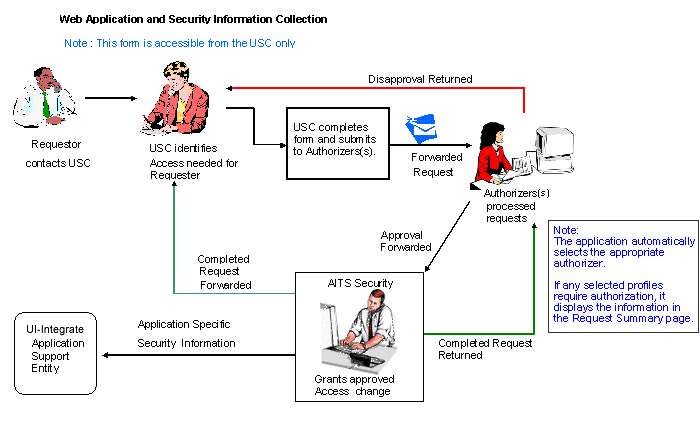
Figure 1
II. Logging into the Enterprise Authentication Service Application
You access the Security Application from the UI-Integrate website or by pointing your web-browser to the following URL: https://webprod.admin.uillinois.edu/secapp/ui_security_application.jsp
The first page you will access is the login screen for the Enterprise Authentication Service (EAS). You must log into EAS to begin using the Security Application.
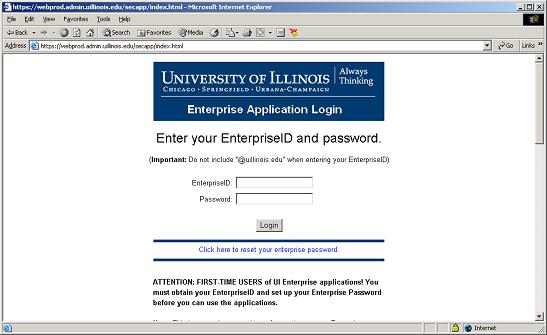
EAS identifies and authenticates you with the UI-Integrate resources and databases. To begin, type your Enterprise ID and password into the labeled entry fields.
Click the "Login" button to move to the Welcome Screen of the Security Application.
What is an Enterprise ID?
Unfortunately, technology challenges still make it impossible for us to have a single id that is used to allow login to all University systems. The University is much closer to this goal, however, than it has been in the past and has defined several specific ids that will be used in various University systems. The Enterprise ID is a very important identifier for access to many of the UI-Integrated associated systems. In general, it is defined to look exactly the same as the NetID given to you as a login account name when you first became associated with the University. There are rare circumstances where these two identifiers are not the same and you can find out what your exact Enterprise ID is by contacting the AITS Help Desk. Other University Ids and their use will be discussed later in this document.
III. Select Authorizer Screen
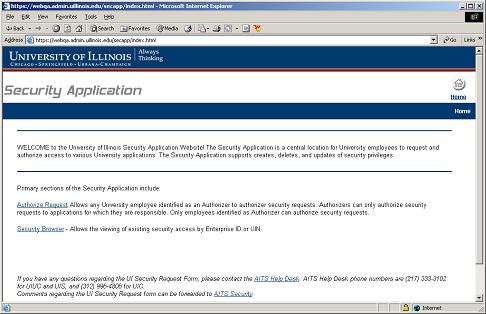
At the University of Illinois, persons using the Security Application will have a variety of roles and responsibilities. You as the authorizer will begin your process by choosing "Authorize Request" from the Security Application Main Menu. Here you will find all the screens that will allow you to authorize security requests. Authorizers can only authorize security requests to applications for which they are responsible.
Notes: Only employees identified as Authorizer can authorize security requests.
IV. View Requests Pending Authorization
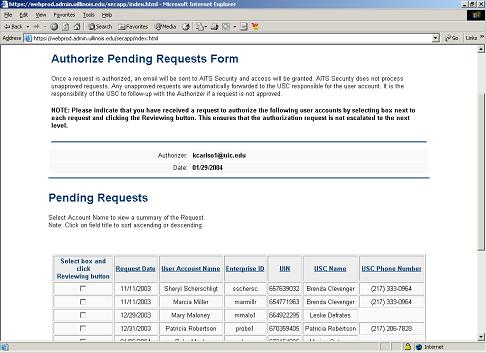
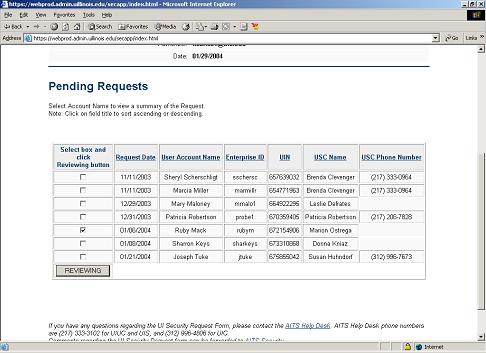
Once you have selected the "Authorizer Request" link, the Authorizer Pending Request Form is displayed. Any requests in an authorizer's group or queue will display.
a. Claim Authorizer Responsibility
An authorizer must claim responsibility for a request by selecting the “Reviewing” checkbox(s) and clicking the “Reviewing” button. This will put the request in your individual queue, so that no other authorizers will be able to authorize the request.
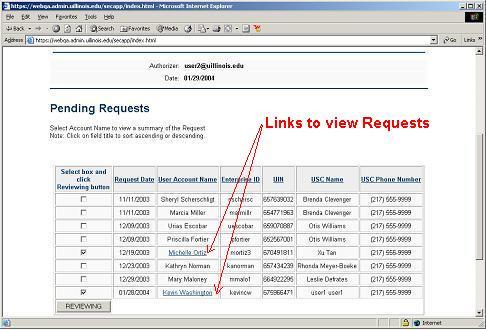
Once a request is in the your individual queue, a link to view the request(s) will be provided.
b. View Request Details
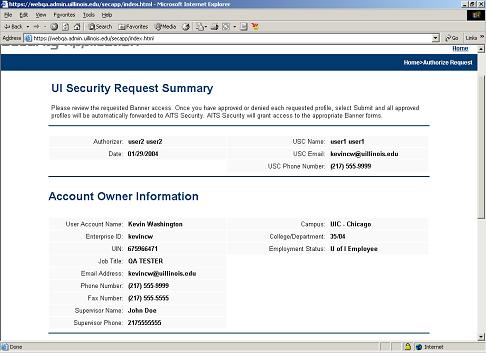
Once you have selected the "User Account Name" link, you will be presented with a summary of the request. At the top of the page you will see all the account owner's information.
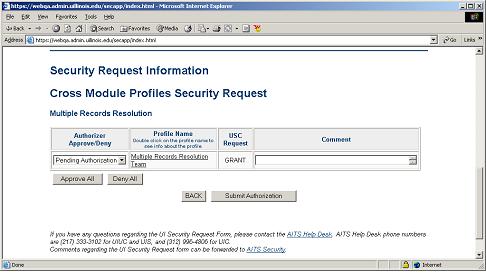
Scroll down through the window to see the Security Request Information, it contains a list of security accesses that are requested by USC for that account owner.
V. Authorize Request
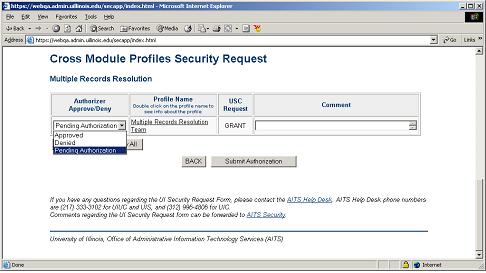
An authorizer has the ability to approve or deny each individual profile. The choice to Approve is to authorize the profile change to the Account Owner while the choice to Deny refers to a rejection of profile change. Please review the request carefully to be sure that the every profile requested is appropriate for the Account Owner.
VI. Submit Authorization
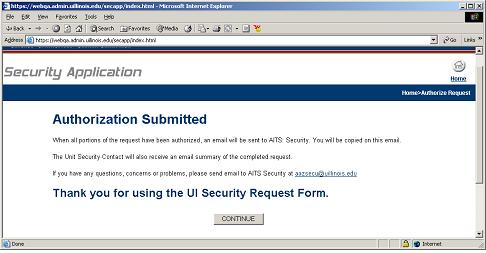
Once you have authorized the profiles within a request, clicking the "Submit" Authorization" button will submit the authorization and return a confirmation.
a. Authorization Completed Email
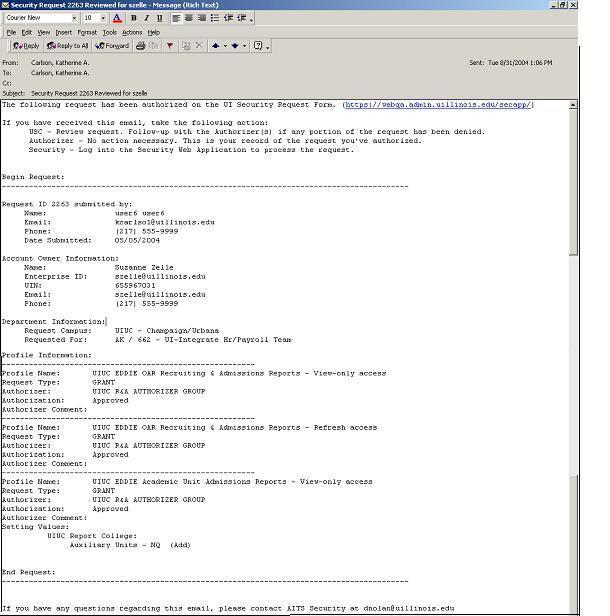
Once ALL portions of a request are authorized, an email titled "e;Security Request 4-Digit-Number Reviewed for UserEnterpriseID"e; (For example: Security Request 5001 Reviewed for jsmith) is sent to AITS System Access Management asking them to process the request. The USC and any authorizers also receive this email. This emails contains a summary of the request, along with all authorization.
VII. Summary
The security application and its associated processes are shared in a cooperative venture by several University departments. Please email AITS System Access Management with any questions or concerns.
Additionally, these web links may provide additional helpful information concerning issues relating to the security application: